

Microsoft Excel provides a wide range of formulas to its users including basic as well as advanced calculations. However, sometimes while dealing with long or complex formulas, you may come across some kind of errors and issues in Excel such as – Circular Reference Error.
This article is all about how to fix circular reference in Excel. Therefore, if you are receiving any warning or circular reference error in Excel then you must read this post to tackle this situation.
But before moving ahead, let’s know something about circular reference.
A circular reference in Excel refers to a situation where the formula visits to its own cell or another more than one time in the chain of calculations.
In other words, a cell in which the formula has been calculated where a cell is also included itself then a circular reference error warning may appear. This error may cause an incorrect calculation with the formulas.
For an example:
- In the cells of A1 & A2, the numbers have been entered and in the A3 cell you need to find the sum or total.
- While typing a sum formula, a range is being stretched to the A3 cell in which you entered the formula.
- Excel will display an error message
If the circular reference error message is seen while adding the formulas, then there is a chance that you’ve created a circular reference within the cell unknowingly.
To tackle this situation, you can simply find & fix the circular cell reference error in Excel by following the below method.
How to Fix Circular Reference in Excel?
If you are facing a circular reference error in Excel then follow the below given technique to resolve this problem.
But, before fixing the circular reference error, firstly you need to find a cell containing the incorrect circular reference.
How to Find Circular References in Excel?
You need to follow the below given instructions to find the cell that contains a circular cell:
- Firstly, you need to open your Excel worksheet where a circular reference error has occurred.
- Then, go to Formulas tab & click on the drop-down menu next to Error Checking.
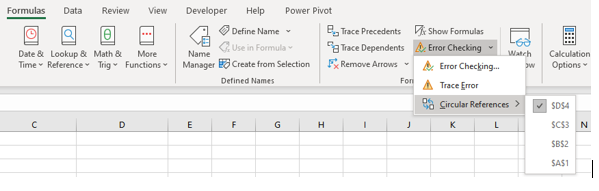
- Here, you need to select Circular References from a drop down menu. Doing this will show you the last entered circular reference.
- Now, click on a cell listed under the Circular References & Excel will take you to the exact call.
- Once done, the status bar will inform you that the all the circular references have been found in your Excel workbook & will display the address of any of those cells:
- In case, the circular references have been found on the other sheets, then the status bar will displays only the “Circular References“.
Once you identified the cell containing the circular reference error, it will become easier for you to allow or remove circular reference issue.
Fix Circular Reference by Enabling & Disabling the Circular References
You may face the circular reference error in Excel if the Iterative Calculation option is disabled. To deal with this situation, you need to enable this option by following the below steps:
- First of all, open your Excel workbook that contains your data.
- Then, go to the “File” tab then click on “Options”.
- Now, select “Formulas” from a left column and you can see a “Calculation options”.
- Here, you need to enable an option “Iterative Calculation and hit OK
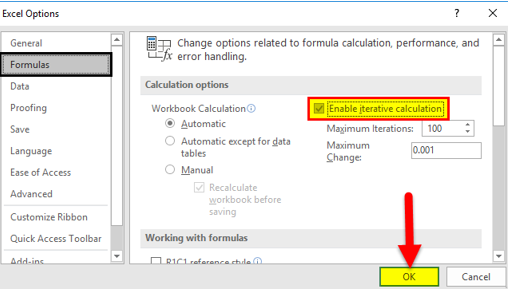
- Once you enabled the “Iterative Calculation” opt. from the “Formulas” tab, simply check & specify the below-mentioned options.
Maximum iterations: It is the value that determines how many times a formula should be recalculated. If the number of iterations is higher, the calculation takes more time.
Maximum change: It is the value that specifies a maximum change between the calculation results. If the number is smaller, you will get the more accurate result and also the Excel will take much time to calculate it.
Excel sets a maximum iterations value by default to 100 & 0.001 value for maximum change. You can simply increase or decrease the values that suits your requirements. After making the changes, press OK to save the settings.
Time to Wrap Up
Dealing with the circular reference error in Excel is annoying and fixing this error is quite tricky. But there is nothing to worry about. In this article I have showed you how to fix circular reference in Excel with ease.
Before fixing this issue you must find the cell having incorrect circular reference then fix it with the help of aforementioned method.
